syncfusion/boldbi
Embed powerful business intelligence inside your apps.
100K+
syncfusion/boldbi repository overview




What is Bold BI
Bold BI is a powerful business intelligence dashboard software that helps you to get meaningful insights from your business data and make better decisions.
It is an end-to-end solution for creating, managing, and sharing interactive business dashboards that include a powerful dashboard designer for composing easily.
With deep embedding, you can interact more with your data and get insights directly from your application.
Deployment Prerequisites
Hardware requirements
The following hardware requirements are necessary to run the Bold BI solution:
- Operating System: Use the Bold BI Docker on the following operating systems:
- Windows
- Ubuntu 22.04 LTS
- Cent OS 9
- Mac
- CPU: 2-core.
- Memory: 8 GB RAM.
- Disk Space: 10 GB or more.
Software requirements
The following software requirements are necessary to run the Bold BI Enterprise edition:
- Database: PostgreSQL 13.0+ | Microsoft SQL Server 2016+ | MySQL 8.0+ | Oracle Database 19c+
- Application: Docker and Docker Compose.
- Web Browser: Microsoft Edge, Mozilla Firefox, and Chrome.
Supported tags
| Tags | Last Modified(MM/DD/YYYY) | Purpose |
|---|---|---|
16.1.90-eval | 07/15/2026 | This Docker image is specifically designed to streamline the Bold BI evaluation process by integrating a PostgreSQL server within the Bold BI container. Please note that this image tag is intended for evaluation purposes only and should not be used in production environments. |
16.1.90, latest | 07/15/2026 | This tag is intended for production use. Select this variant if you prefer Debian as the base image for your deployment. |
Deploying Bold BI Evaluation Image Using Docker Compose
The eval tag (16.1.90-eval) is specifically designed to streamline the Bold BI evaluation process by integrating a PostgreSQL server within the Bold BI container. Please note that this image tag is intended for evaluation purposes only and should not be used in production environments. In this guide, we will demonstrate how to deploy the Bold BI evaluation image using Docker Compose, with volume mounts configured for data persistence.
-
Download the Docker Compose file by using the following command.
curl -o docker-compose.yml "https://raw.githubusercontent.com/boldbi/boldbi-server-in-docker/main/deploy/single-container-eval-no-license/docker-compose.yml" -
Run the command below. This command will start the Bold BI application container and display the Bold BI container logs, providing information about the installation status of the Bold BI application.
docker-compose up -d; docker-compose logs -f boldbi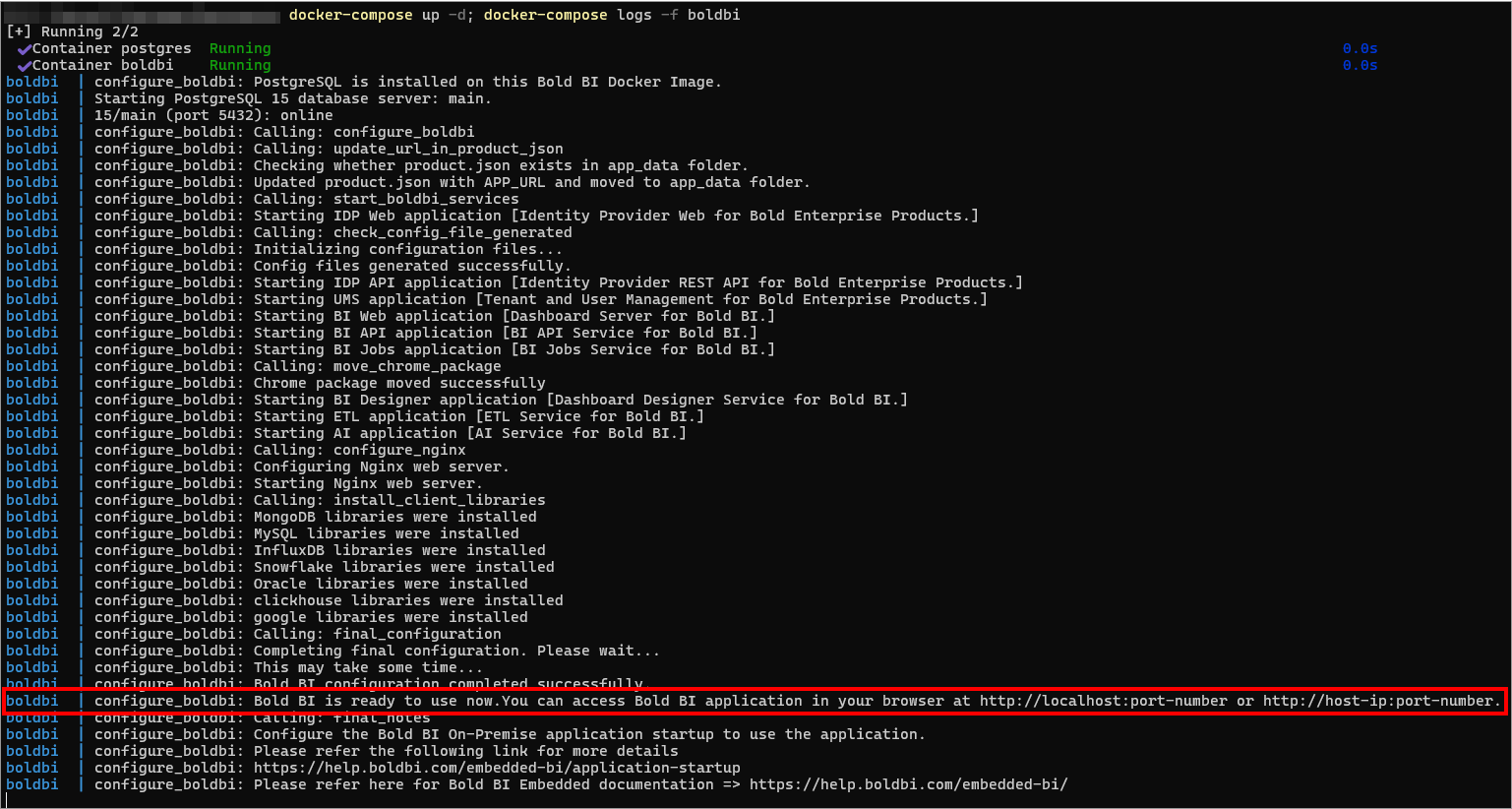
-
Now, access the Bold BI application by entering the URL as
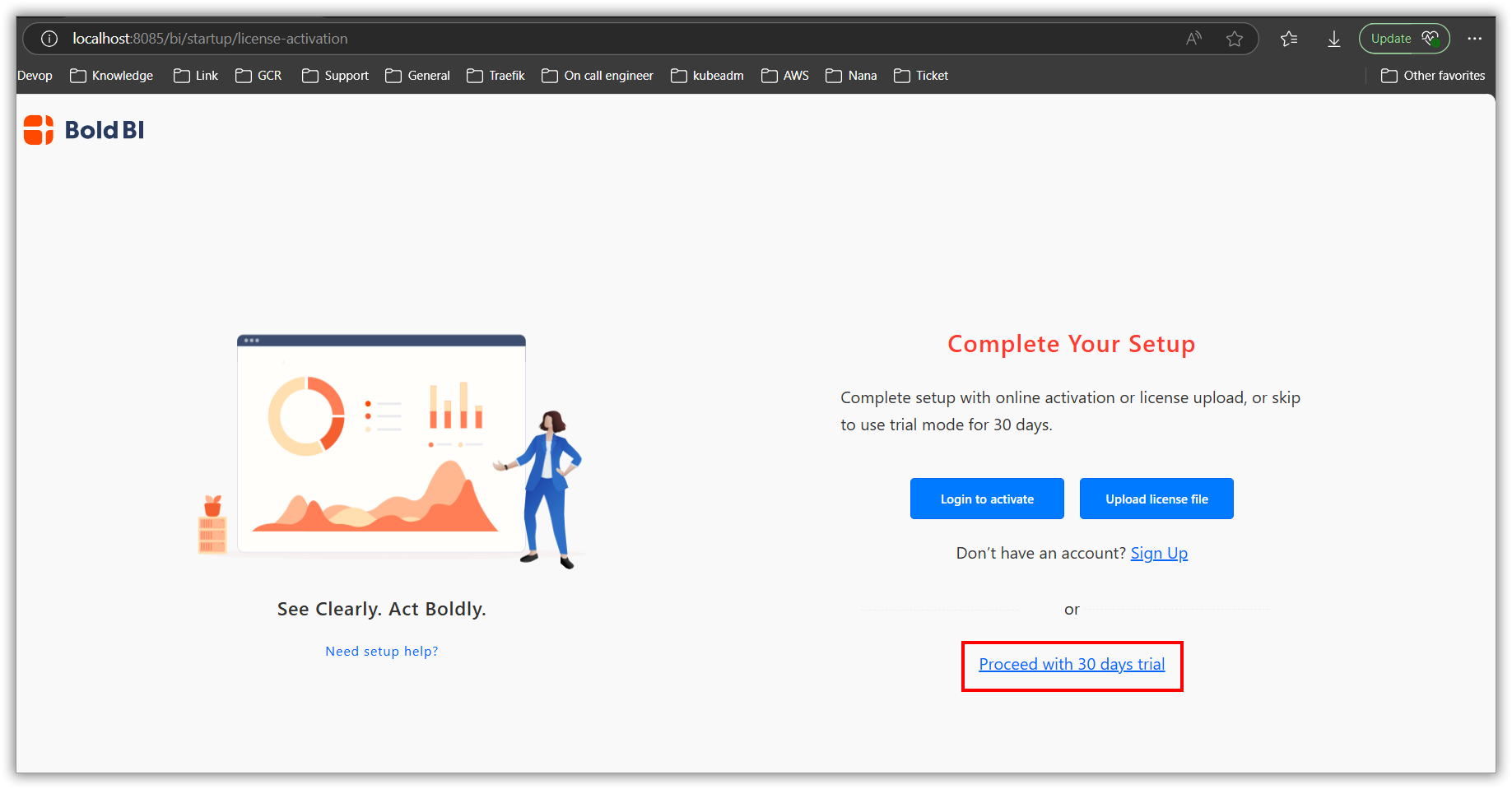
http://localhost:8085orhttp://host-ip:8085in the browser. When you open this URL, the application will configure its startup in the background and display the license activation page below within a few seconds. You can either activate your license using the available option or try the trial version by selecting the Proceed with 30 Days Trial option.
Note: The default port number mentioned in the compose file is 8085. If you are making changes to the port number, then you need to use that port number for accessing the Bold BI application.
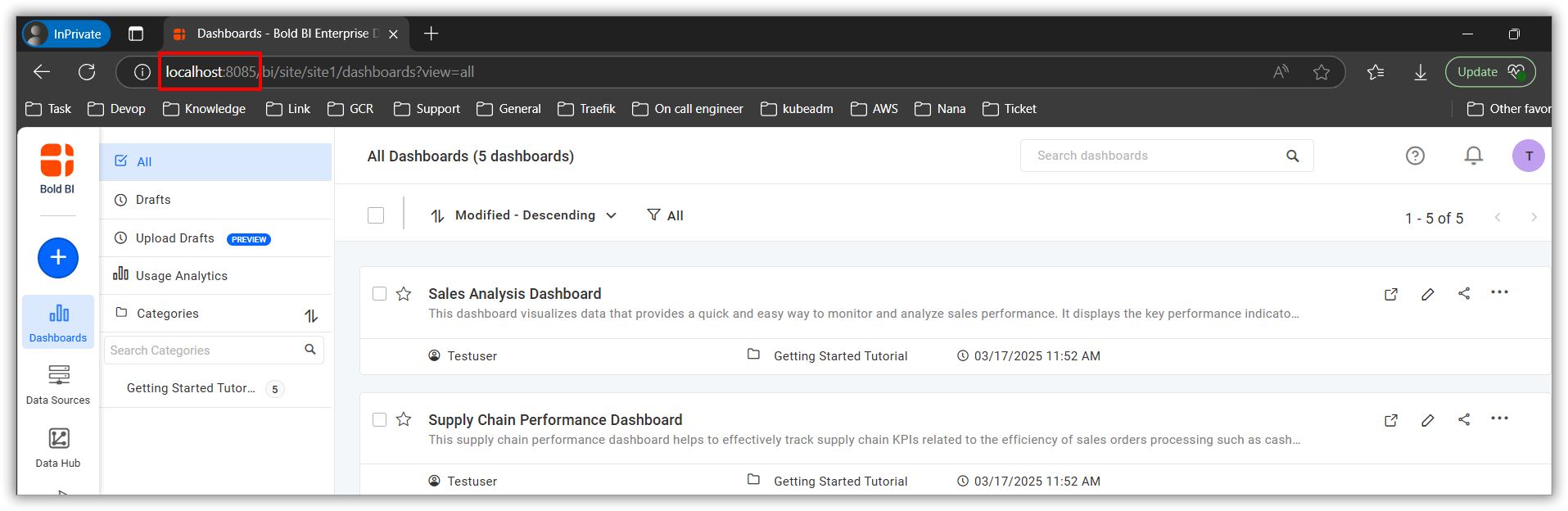
After selecting the license option, the application will redirect you to the dashboard listing page.
Note:
1. The deployment steps above are recommended for evaluation purposes only. For a production use case, you will need to mount the volume to the host path location or online storage and utilize managed DB servers.
2. Don't use localhost IP (http://127.0.0.1) withportto access the application.
How to Deploy Bold BI using Advanced Configuration?
In this section, you will learn how to run the Bold BI application using advanced configurations such as configuring Bold BI using an existing DB server, using a host directory as a persistent volume, configuring startup manually, configuring an SSL certificate, and running a multi-container BI application.
License
https://www.boldbi.com/terms-of-use#embedded
The images are provided for your convenience and may contain other software that is licensed differently (Linux system, Bash, and more from the base distribution, along with any direct or indirect dependencies of the Bold BI platform).
These pre-built images are provided for your convenience and include all optional and additional libraries by default. These libraries may be subject to different licenses than the Bold BI product.
If you want to install Bold BI from scratch and precisely control which optional libraries are installed, please download the stand-alone product from boldbi.com. If you have any questions, please contact the Bold BI team (https://www.boldbi.com/support).
It is the image user's responsibility to ensure that any use of this image complies with any relevant licenses for all software contained within.
FAQ
How to configure SSL for Bold BI application in single container and multiple container?
How to reset the database for Bold BI application in docker environment?
How to auto deploy multiple services Bold BI via docker-compose?
How to upgrade a new image in docker environment using docker compose yaml file?
How to deploy Bold BI on an ECS Fargate cluster using an Application Load Balancer?
Tag summary
Content type
Image
Digest
sha256:58018814e…
Size
2.8 GB
Last updated
3 days ago
docker pull syncfusion/boldbi:15.3.20_07152026_044124_KC303683This week's pulls
Pulls:
232
Apr 14 to Apr 20