mylesp/dockerlamp
Docker container that provides a full LAMP build.
742
mylesp/dockerlamp repository overview
Ubuntu 18.04 with LAMP.
From experience, when I first started out playing around with web development it can be very confusing setting it up. This is a clean bundle build for a LAMP platform. Using docker, this will allow you to pull the build and trash the build with ease.
This container is useful for people that would want to develop and test projects on a web platform. LAMP is an open-source web development platform. LAMP contains:
- Linux - Operating system
- Apache - Web server
- MySQL - Relational database management system
- PHP - Scripted object-oriented language
However, this container is not the best code of practice because the purpose of docker is to be lightweight and agile. Therefore on a production level you should limit compute processes to one per container.
Feedback
If you have any comments, feedback, or issues please do contact me on https://github.com/RattyMyles/DockerLAMP/issues. I will reply as soon as I can.
mylesp/dockerlamp:latest
contents:
- Ubunbtu 18.04
- mysql-server
- php
- libapache2-mod-php
- supervisor
- apache2
Side note MYSQL
MYSQL has no security installed, this makes your data applications much simpler. However this is not suitable for production use.
Example of a working code line:
mkdir -p /root/home/docker/html
docker volume create mysql_data
docker volume create mysql_log
docker volume create apache_data
docker volume create httpd_data

docker run -d --name mylespLAMP18.04 \
     -p 80:80 \
     -v mysql_data:/var/lib/mysql/ \
     -v mysql_log:/var/log/mysql/ \
     -v apache_data:/etc/apache2/ \
     -v /root/home/docker/html/:/var/www/html/ \
     -v httpd_data:/var/log/httpd/ \
     --restart unless-stopped \
     mylesp/dockerlamp:latest
Instructions for Ubuntu 14.04, 16.04, 18.04
If you haven't got docker on your machine, follow these instructions to start you off. If you are the type that have little patients, this is great because you will see how easy and quick to install docker and the docker container in minutes. Please refer to the docker documentation if you don't wish to follow these instructions https://docs.docker.com/v17.12/install/.
- Type the code below in the terminal to install the repository and docker.
curl -fsSL https://download.docker.com/linux/ubuntu/gpg |  apt-key add -
add-apt-repository "deb [arch=amd64] https://download.docker.com/linux/ubuntu $(lsb_release -cs) stable"
apt-get update
apt-get install -y docker-ce
- Now that docker has been installed, install the mylesp/dockerlamp container below. The code below will show a working version below.
mkdir -p /root/home/docker/html
docker volume create mysql_data
docker volume create mysql_log
docker volume create apache_data
docker volume create httpd_data

docker run -d --name mylespLAMP18.04 \
     -p 80:80 \
     -v mysql_data:/var/lib/mysql/ \
     -v mysql_log:/var/log/mysql/ \
     -v apache_data:/etc/apache2/ \
     -v /root/home/docker/html/:/var/www/html/ \
     -v httpd_data:/var/log/httpd/ \
     --restart unless-stopped \
     mylesp/dockerlamp:latest
- Congratulations! you've installed your first docker container in minutes! Now, lets test to see if it works. You can use your domain name or IP address of the server/machine that it is running on. Here is an example below:
Without a domain name type this into a browser:
http://localhost/
or
http://127.0.0.1/
If you have a domain name type this into a browser:
http://insert_domain_here/
Now that you have tested it on the browser you won't see much. This is why you need to add some content inside the "/root/home/docker/html/" or the file directory that you changed it too.
- This test is just to print out an "Hello world!" string on to your browser. Either create a HTML document your self or try this code but delete it afterwards when you want to start building:
echo "<html><head><\head><body><h1> Hello world!<\h1><\body><\html>" >> /root/home/docker/html/index.html
Now run refresh your browser and you'll see the string! You are now ready to make websites. If you don't like HTML and CSS, you could always look into wordpress or a graphical user interface software to help you build sites as well.
Instructions for Windows 10
If you have a windows machine don't sweat, here is the instructions for this type of OS. If you don't want to follow my instructions, please refer to the docker documentation https://docs.docker.com/docker-for-windows/install/. Follow the docker requirements before attempting to install it on your windows machine.
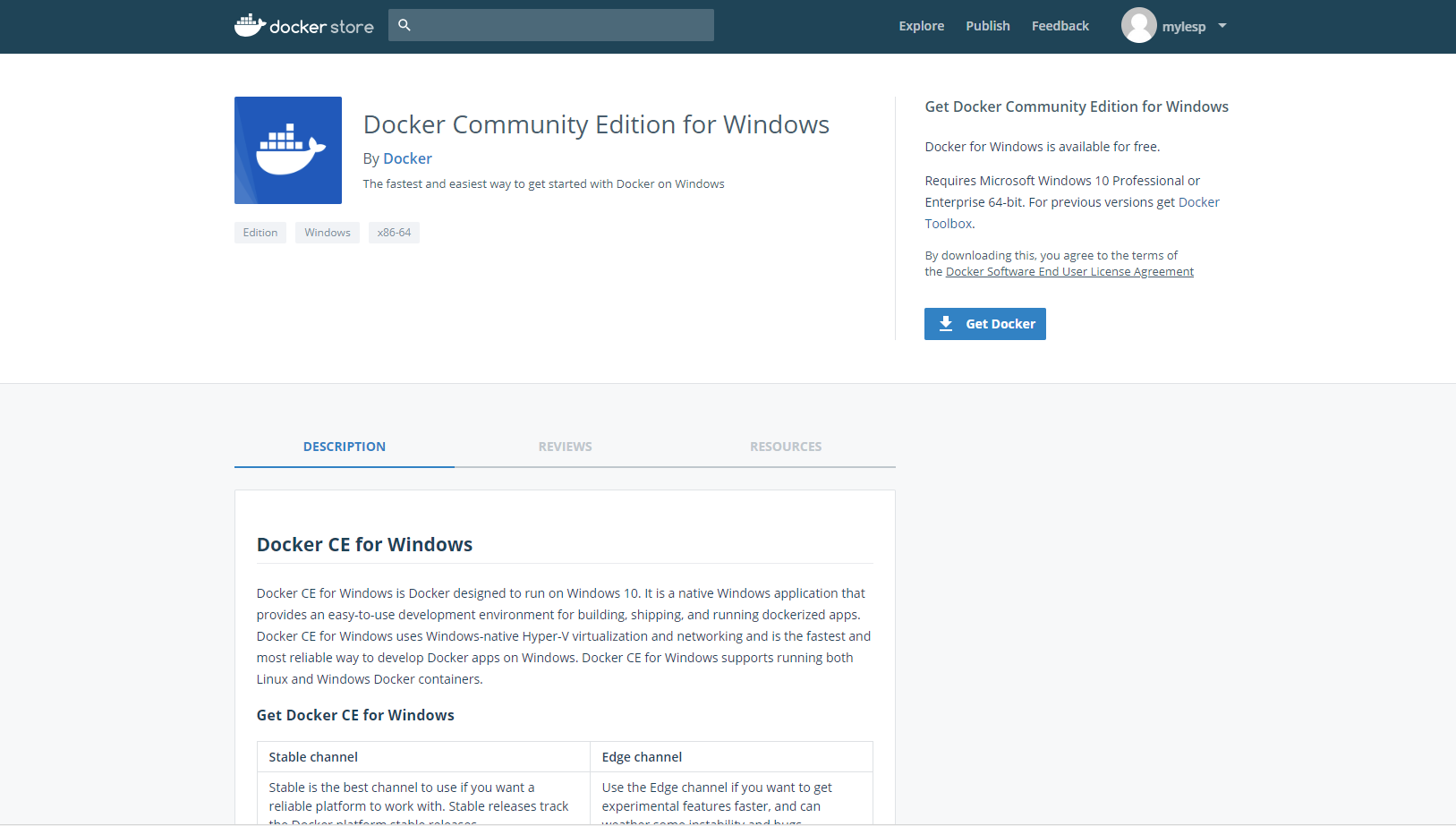
- The first thing you'll need to do is install docker. Go on to this site to download docker https://store.docker.com/editions/community/docker-ce-desktop-windows. Here is a screenshot on what it should look like:
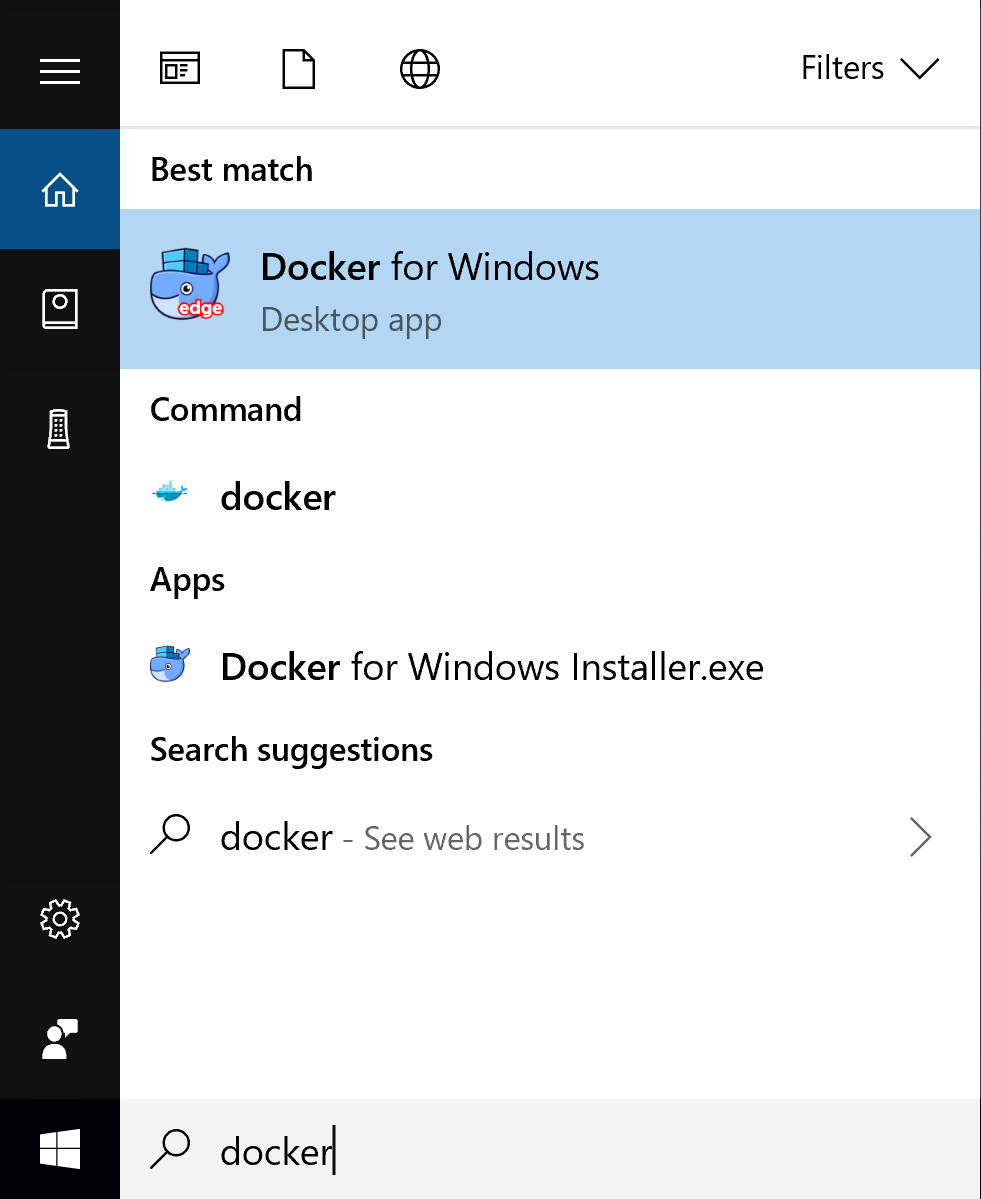
- Once installed, you'll need to verify the installation by going into the menu to search and select docker. For example:
Side note:
To see if docker is running on your machine, you will see this icon:

- Now you should see the image below:
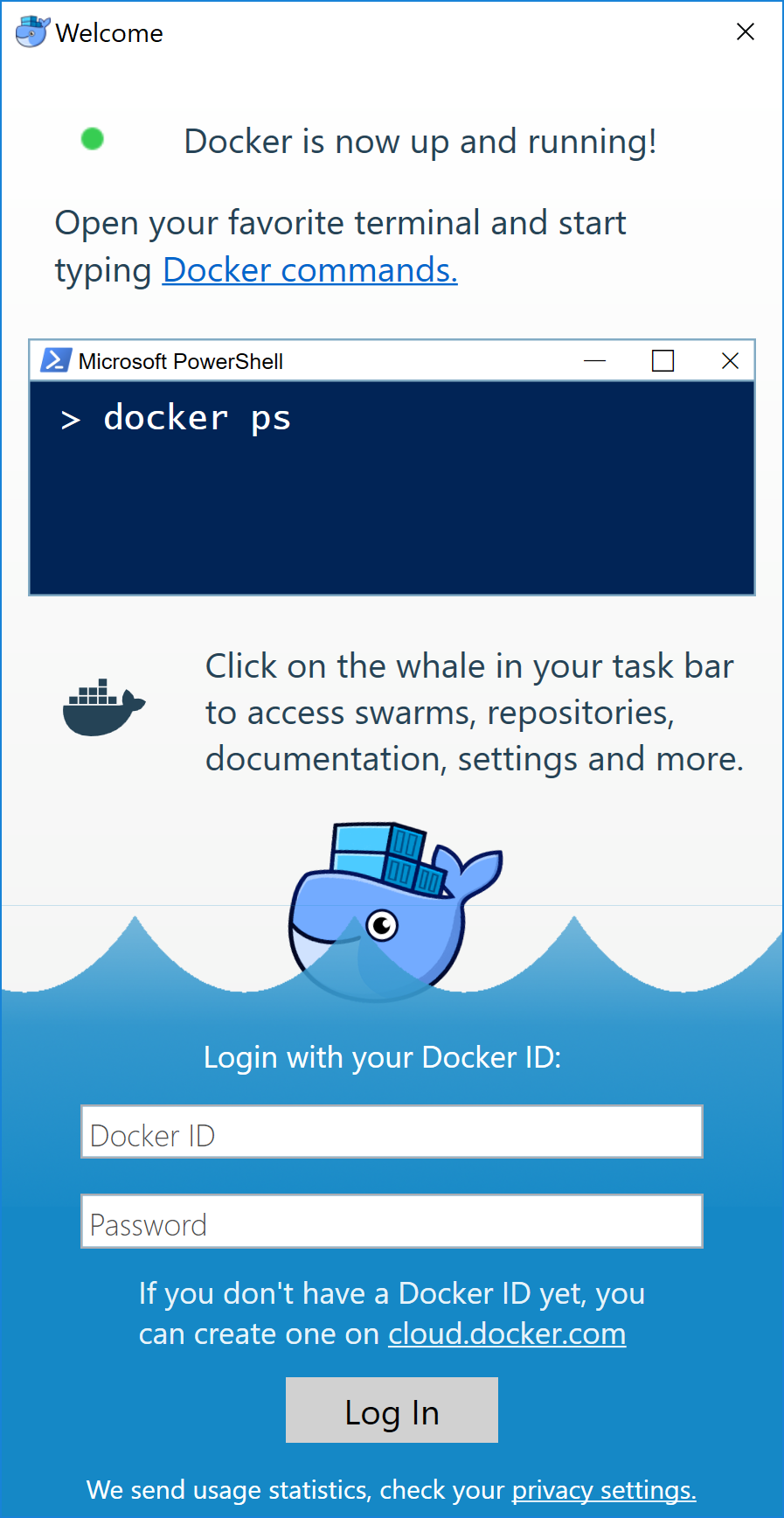
Where you see ">" terminal, this is where you put the container installation. This is what you put in there:
PS> mkdir %UserProfile%/Desktop/html_data
docker volume create mysql_data
docker volume create mysql_log
docker volume create apache_data
docker volume create httpd_data
docker run -d --name mylespLAMP18.04 -p 80:80 -v mysql_data:/var/lib/mysql/  -v mysql_log:/var/log/mysql/ -v apache_data:/etc/apache2/  -v %UserProfile%/Desktop/html_data:/var/www/html/ -v httpd_data:/var/log/httpd/  --restart unless-stopped mylesp/dockerlamp:latest
You should see a folder that has been created on the desktop. Inside the html_data folder, you insert the website content inside.
- To view your content, go on to the browser and type in:
http://localhost/
or
http://127.0.0.1/
If you have a domain name type this into a browser:
http://insert_domain_here/
Conclusion
This is a quick bundle to get you started in web development. If you have any questions or issues, please feel free to send me a message on: https://github.com/RattyMyles/DockerLAMP/issues
Tag summary
Content type
Image
Digest
Size
164 MB
Last updated
almost 8 years ago
docker pull mylesp/dockerlamp:unoptimised