elestio/docuseal
Docuseal, verified and packaged by Elestio
10K+
elestio/docuseal repository overview



Docuseal, verified and packaged by Elestio
Docuseal is an open source platform that provides secure and efficient digital document signing and processing. Create PDF forms to have them filled and signed online on any device with an easy-to-use, mobile-optimized web tool.
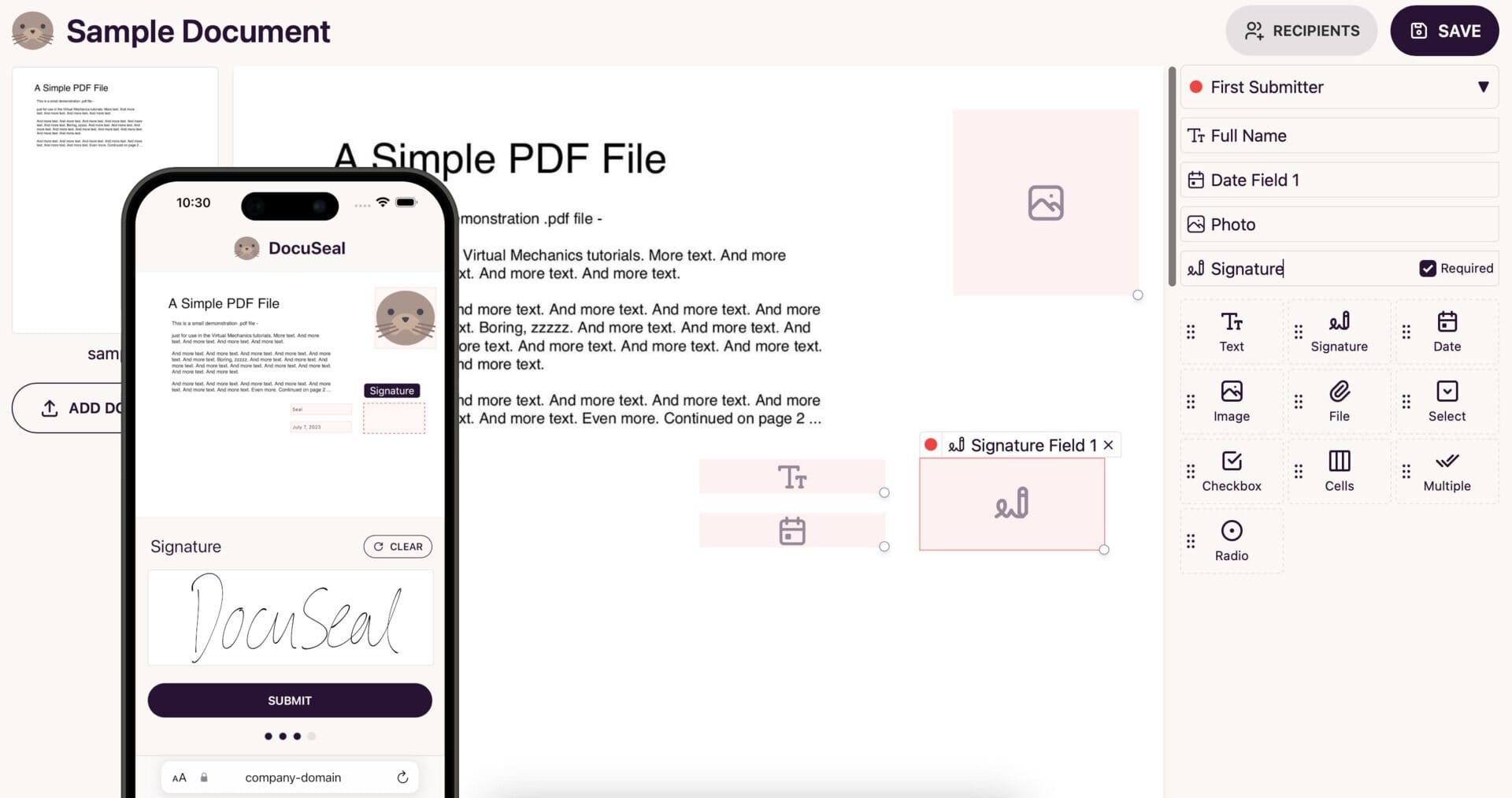
Deploy a fully managed Docuseal on elest.io if you want automated backups, reverse proxy with SSL termination, firewall, automated OS & Software updates, and a team of Linux experts and open source enthusiasts to ensure your services are always safe, and functional.

Why use Elestio images?
- Elestio stays in sync with updates from the original source and quickly releases new versions of this image through our automated processes.
- Elestio images provide timely access to the most recent bug fixes and features.
- Our team performs quality control checks to ensure the products we release meet our high standards.
Usage
Docker-compose
Here are some example snippets to help you get started creating a container.
version: "3.3"

services:
    app:
        depends_on:
            - postgres
        image: elestio/docuseal:${SOFTWARE_VERSION_TAG}
        ports:
            - 172.17.0.1:5967:3000
        volumes:
            - ./docuseal_data:/data
        environment:
            FORCE_SSL: "true"
            DATABASE_URL: postgresql://postgres:${PG_PASSWORD}@postgres:5432/docuseal

    postgres:
        image: elestio/postgres:${SOFTWARE_VERSION_TAG}
        volumes:
            - ./pg_data:/var/lib/postgresql/data
        environment:
            POSTGRES_USER: postgres
            POSTGRES_PASSWORD: ${PG_PASSWORD}
            POSTGRES_DB: docuseal
            HOST: ${DOMAIN}

    # caddy:
    #   image: caddy:${SOFTWARE_VERSION_TAG}
    #   command: caddy reverse-proxy --from $HOST --to app:3000
    #   ports:
    #     - 80:80
    #     - 443:443
    #     - 443:443/udp
    #   volumes:
    #     - .:/data
    #   environment:
    #     - HOST=${HOST}
Environment variables
| Variable | Value (example) |
|---|---|
| SOFTWARE_VERSION_TAG | latest |
| ADMIN_PASSWORD | your-strong-password |
| ADMIN_USERNAME | [email protected] |
| DOMAIN | your.domain.com |
| PG_PASSWORD | your-strong-password |
Access
You can access the Web UI at: http://your-domain:5967
Maintenance
Logging
The Elestio Docuseal Docker image sends the container logs to stdout. To view the logs, you can use the following command:
docker-compose logs -f
To stop the stack you can use the following command:
docker-compose down
Backup and Restore with Docker Compose
To make backup and restore operations easier, we are using folder volume mounts. You can simply stop your stack with docker-compose down, then backup all the files and subfolders in the folder near the docker-compose.yml file.
Creating a ZIP Archive For example, if you want to create a ZIP archive, navigate to the folder where you have your docker-compose.yml file and use this command:
zip -r myarchive.zip .
Restoring from ZIP Archive To restore from a ZIP archive, unzip the archive into the original folder using the following command:
unzip myarchive.zip -d /path/to/original/folder
Starting Your Stack Once your backup is complete, you can start your stack again with the following command:
docker-compose up -d
That's it! With these simple steps, you can easily backup and restore your data volumes using Docker Compose.
Links
Tag summary
Content type
Image
Digest
sha256:7ece7651e…
Size
216.9 MB
Last updated
1 day ago
docker pull elestio/docuseal:3.1.4This week's pulls
Pulls:
482
Last week