3rdman/dotnet-spark
.NET for Apache Spark (unofficial image)
100K+
3rdman/dotnet-spark repository overview
Summary
Unofficial images of .NET for Apache Spark providing one of the following environments
For more details about .NET for Apache Spark, please have a look at one or more of the following pages:
My blog articles
Container OS support
With the release of .NET for Apache Spark version 1.0.0, the only container operating system and architecture supported is
--os linux --arch amd64
The experimental support for Windows Container images has been dropped with the release of .NET for Apache Spark version 1.0.0. Please open a request via the related GitHub repository , if you feel there's still is a need for it.
Tagging
Please note that the tagging scheme has changed with the release of .NET for Apache Spark version 1.0.0, as well. Mainly to support the different image types.
For the generic runtime images the tags reflect the .NET for Apache Spark and Apache Spark version.
E.g: 2.1.0-3.2.1, where 1.0.0 is the .NET for Apache Spark version, and 3.2.1 the version of Apache Spark itself.
The development images are tagged with the Apache Spark version follow by -dev.
For example: 2.4.6-dev
The .NET interactive images tags look like this:
1.0.0-2.4.7-interactive. 1.0.0 being the .NET for Apache Spark version and 2.4.7 the Apache Spark used to build the image.
Here is a list of all available Tags
Runtime Images (source)
Quick reference
The runtime images are intended to be used for testing .NET for Apache Spark, without the need to install all the required bits manually. Per default, the related container will start up a master instance and one slave instance of Apache Spark.
docker run -d --name dotnet-spark -p 8080:8080 -p 8081:8081 3rdman/dotnet-spark:latest
Once started, use the interactive terminal to play around.
docker exec -it dotnet-spark bash
Spark masters' WebUI is listening on port 8080 and the spark worker WebUI on port 8081.
Playing with the HelloSpark example
The HelloSpark example from https://github.com/dotnet/spark/blob/master/docs/getting-started/ubuntu-instructions.md is available within the container under /dotnet/HelloSpark
Please have a look at the instructions from the URL above or the README.txt file contained in this folder.
If you want to test the example with the different workers, use the following command in the interactive terminal:
spark-submit --class org.apache.spark.deploy.dotnet.DotnetRunner --master spark://$HOSTNAME:$SPARK_MASTER_PORT microsoft-spark-3-2_2.12-2.1.0.jar dotnet HelloSpark.dll
Spark's log files are located in /spark/logs
Configuration Parameters
SPARK_MASTER_PORT
The port used to submit jobs the the master
Default: 7077
SPARK_MASTER_WEBUI_PORT
WebUI port for the master
Default: 8080
SPARK_WORKER_WEBUI_PORT
Starting port number for the worker WebUI.
Default: 8081
SPARK_SUBMIT_PACKAGES
This is set to an empty string per default
Only useful when using the debugging backend. See Debugging section below.
Debugging with Visual Studio or Visual Studio Code
The image provides experimental support for using the DotnetRunner in debug mode.
During the startup of the container, spark-submit is started with the DotnetRunner in debug mode (along with the master and worker instances), waiting for Visual Studio to connect via port 5567. For the debugging session to work properly, you will also have to map your projects Debug folder to the /dotnet/Debug folder of the running container.
Example:
docker run -d --name dotnet-spark -p 5567:5567 -v "C:\DEV\dotnet\ActiveMqTest\bin\Debug:/dotnet/Debug" -e SPARK_SUBMIT_PACKAGES="org.apache.bahir:spark-sql-streaming-mqtt_2.11:2.3.3" 3rdman/dotnet-spark:0.12.1-spark-2.3.3-linux
If your solution depends on any additional jar files, that are not available as downloadable Maven package, just ensure that they are copied into the projects' "bin\Debug\netcoreapp3.1" folder. They then can be used by spark-submit as well.
Please have a look at this blog post, or this one about using the image with Visual Studio Code on Linux for a more detailed description.
Development Images (source)
Use this images if you want to build .NET for Apache Spark yourself.
You can either just start a container via
docker run --name dotnet-spark-dev -d 3rdman/dotnet-spark:dev-latest
and attach an interactive terminal
docker exec -it dotnet-spark bash
or start the image with code-server mapped to an available host port
docker run --name dotnet-spark-dev -d -p 127.0.0.1:8888:8080 3rdman/dotnet-spark:dev-latest
to use Visual Studio code in your browser.
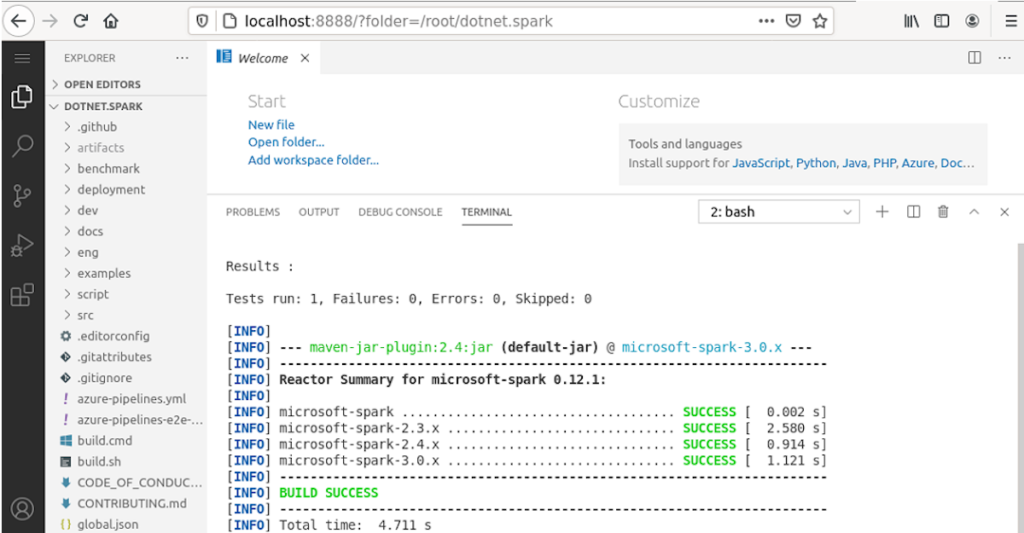
For a more detailed walk-though please have a look at this article https://3rdman.de/2020/10/build-net-for-apache-spark-with-vs-code-in-a-browser
Interactive Notebook Images (source)
This image allows you to explore .NET for Apache Spark using interactive Jupyter Notebooks
Just start a container via
docker run --name dotnet-spark-interactive -d -p 8888:8888 3rdman/dotnet-spark:interactive-latest
After that, examine the logs of the container to get the correct URL that is required to connect to Juypter using the authentication token.
docker logs -f dotnet-spark-interactive
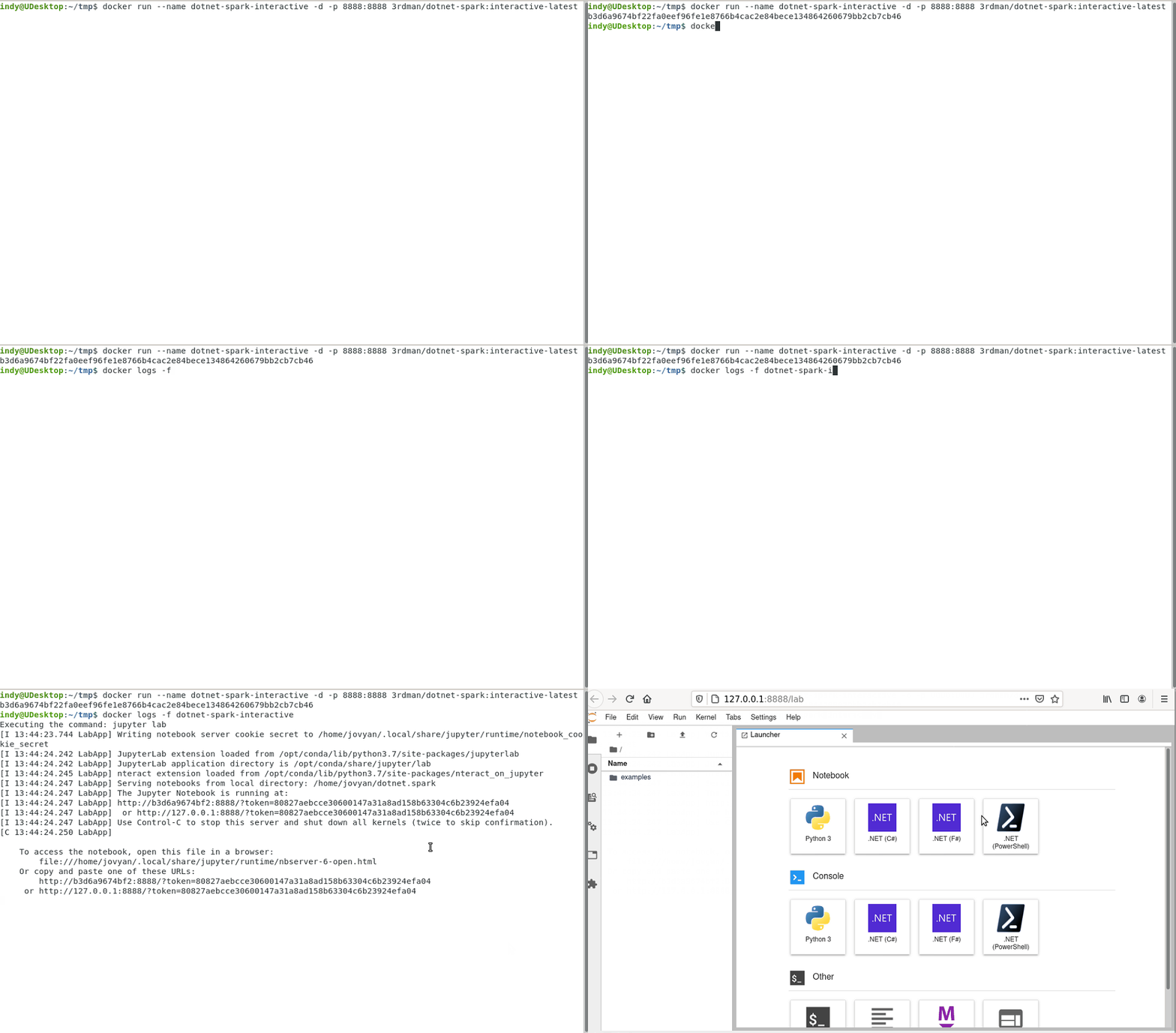
For more details, please check this blog post
Additional resources
If you just want to perform a quick test, using the included HelloSpark example project, please check out this article.
For writing to a database, you might want to explore the IForeachWriter interface (supported since 0.9.0).
The following articles might be useful as well, especially if you want to try out debugging:
Tag summary
Content type
Image
Digest
Size
1.2 GB
Last updated
about 4 years ago
docker pull 3rdman/dotnet-spark:hadoop-latest